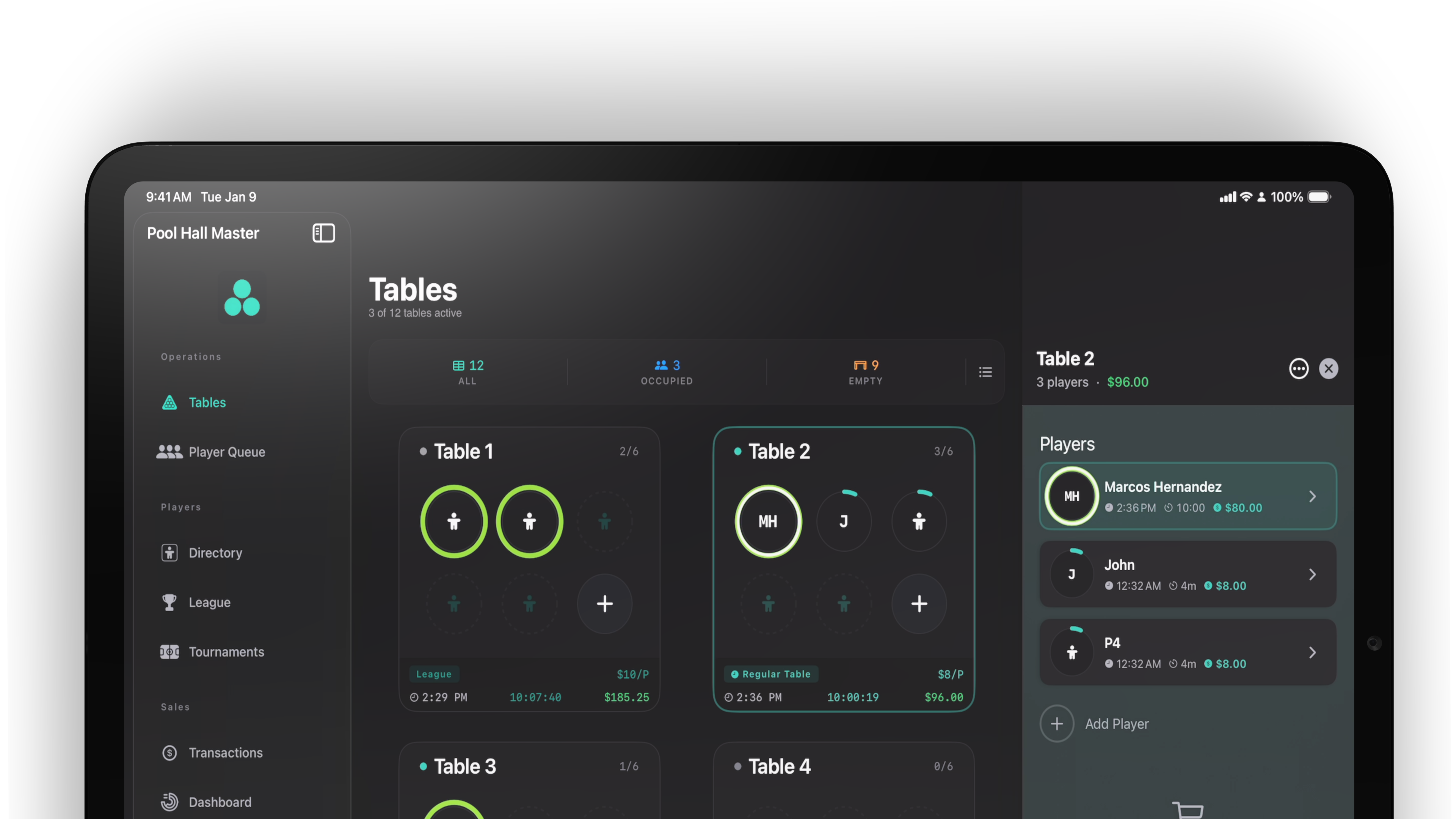
Pool Hall Master is a universal iOS app for iPhone and iPad. The Floor view is designed primarily for iPad — most rooms run it on a 12.9″ iPad Pro at the front desk — but every screen also works on iPhone for managing your room on the go.
Requirements
- An iPhone or iPad running iPadOS / iOS 26 or later.
- A reliable Wi-Fi connection (the app talks to Firebase in real time).
- An email address, Apple ID, or Google account to sign in.
Install the app
- Open the App Store on your iPad or iPhone.
- Search for Pool Hall Master.
- Tap Get and authenticate.
- Tap Open when the install completes.
Create your account or sign in
The first screen you see is the welcome screen. From here you can either Create Account or Sign In.
Pool Hall Master supports three sign-in methods, all powered by Firebase Auth:
- Sign in with Apple — fastest if you’re on an Apple device.
- Continue with Google.
- Continue with Email — uses an email address and a password (minimum six characters).
- From the welcome screen, tap Create Account (or Sign In if you already have an account).
- Choose your sign-in method.
- Complete the sign-in flow with your provider, or fill in your name, email, and password if using email sign-up.
After you sign in
When you sign in for the first time the app will check whether your pool hall already exists in our system. You’ll see a brief “Looking for your pool hall…” screen.
- If your pool hall already exists (because someone signed up for you, or you previously completed setup), you’ll go straight to the Floor.
- If this is a brand-new account, the app guides you into a short setup wizard — covered in the next guide, Setting up your pool hall.
Forgot your password?
If you sign in with email and forget your password, tap Forgot Password? on the sign-in screen, enter your email, and tap Send Code. You’ll receive a password reset email — open it to set a new password, then come back to the app and sign in normally.
Next
Once you’re signed in, you’ll either land on the Floor, or you’ll be taken through pool hall setup. Either way, the next stop is Setting up your pool hall.