The Floor is the main screen of Pool Hall Master and the screen your staff will spend 90% of their time on. It shows every table in your room as a live card with players, timers, and current charges.
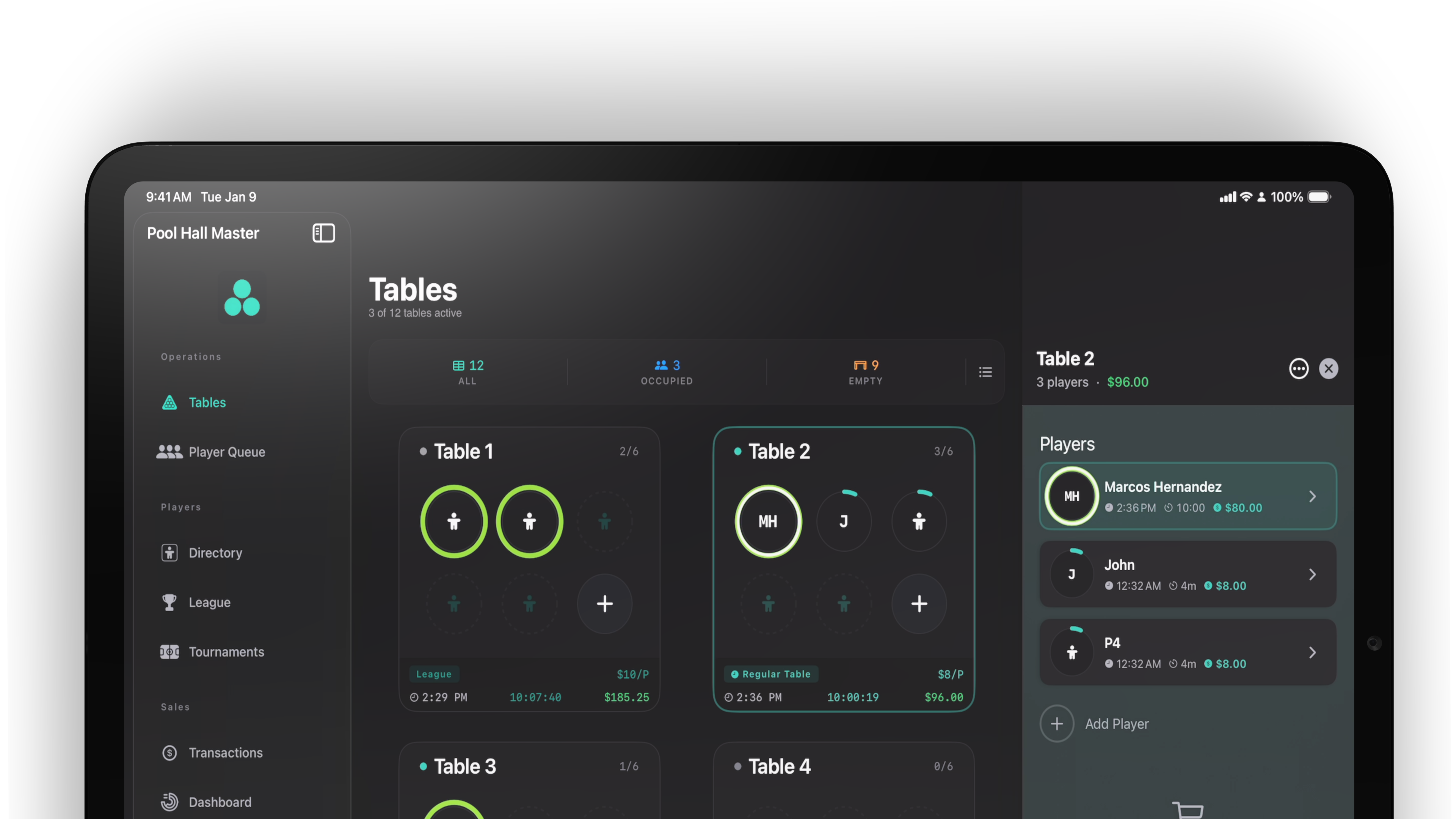
Layout
The Floor offers two view modes via the toolbar:
- Grid View — large table cards in a grid. The default and best for at-a-glance.
- List View — a compact list. Best for venues with many tables.
What’s on a table card
Every table card shows:
- The table label (e.g. Table 5) and the player count as n / 6.
- Player chips — one per player on the table, each with the player’s name and an optional photo.
- The rate — for example FLAT $15/hr or a per-player rate string.
- A timer showing time elapsed for the session.
- The total owed so far.
When a table has no players, the footer shows the literal text Available.
Filters and sorting
The Floor toolbar gives you quick filters and sort options:
- All / Occupied / Empty — filter the grid by occupancy.
- Sort menu — sort by table number, time elapsed, or total.
Selecting a table
On iPad, tapping a table card selects it and opens the Context Aware Sidebar on the right. The sidebar shows the table’s full details and exposes per-table actions (start a game, set a flat rate, transfer players, clear table, send the dashboard URL by SMS).
On iPhone, tapping a table card opens a sheet with the same actions.
Adding players to a table
To start tracking time on a table, you simply add players to it. There’s no separate “Start Session” button — the timer begins the moment a player is added.
- Tap the + button on a table card (or use the sidebar on iPad).
- The card adds a player named P1, P2, P3… and starts the timer.
- Optional: tap any chip to rename it, attach a CRM profile, or edit details.
You can also seat a party from the Player Queue (waitlist) by dragging their entry onto a table or by using the Assign to Table action — that flow is covered in Running the Player Queue.
Pause and resume
You can pause a table-wide or a single player.
- Single player: tap a chip → Pause Timer. The chip status changes from Playing to Paused. Tap Resume Timer to continue.
- All players on a table: open the table’s context menu (long-press on iPad) → Pause All Players / Resume All Players.
Clearing a table
If a table needs to be cleared without going through checkout (e.g. you accidentally added a player), use the Clear Table action in the sidebar. You’ll see a confirmation:
This will remove all players from {Table Name}. This action cannot be undone.
This wipes the timer and removes all players but does not record a transaction.
Where to next
- Starting and ending a session walks through the full lifecycle including charging at checkout.
- Setting up TV displays shows how to mount the per-table TV view and enable scan-to-score.