The Player Queue is the front-desk waitlist. It tracks every party waiting for a table, every booking arriving today, and any no-shows. From here you can take a walk-in, alert the next party that their table is ready, and seat them in a few taps.
The Player Queue is reached via the Player Queue tab in the sidebar (or the Queue tab on iPhone).
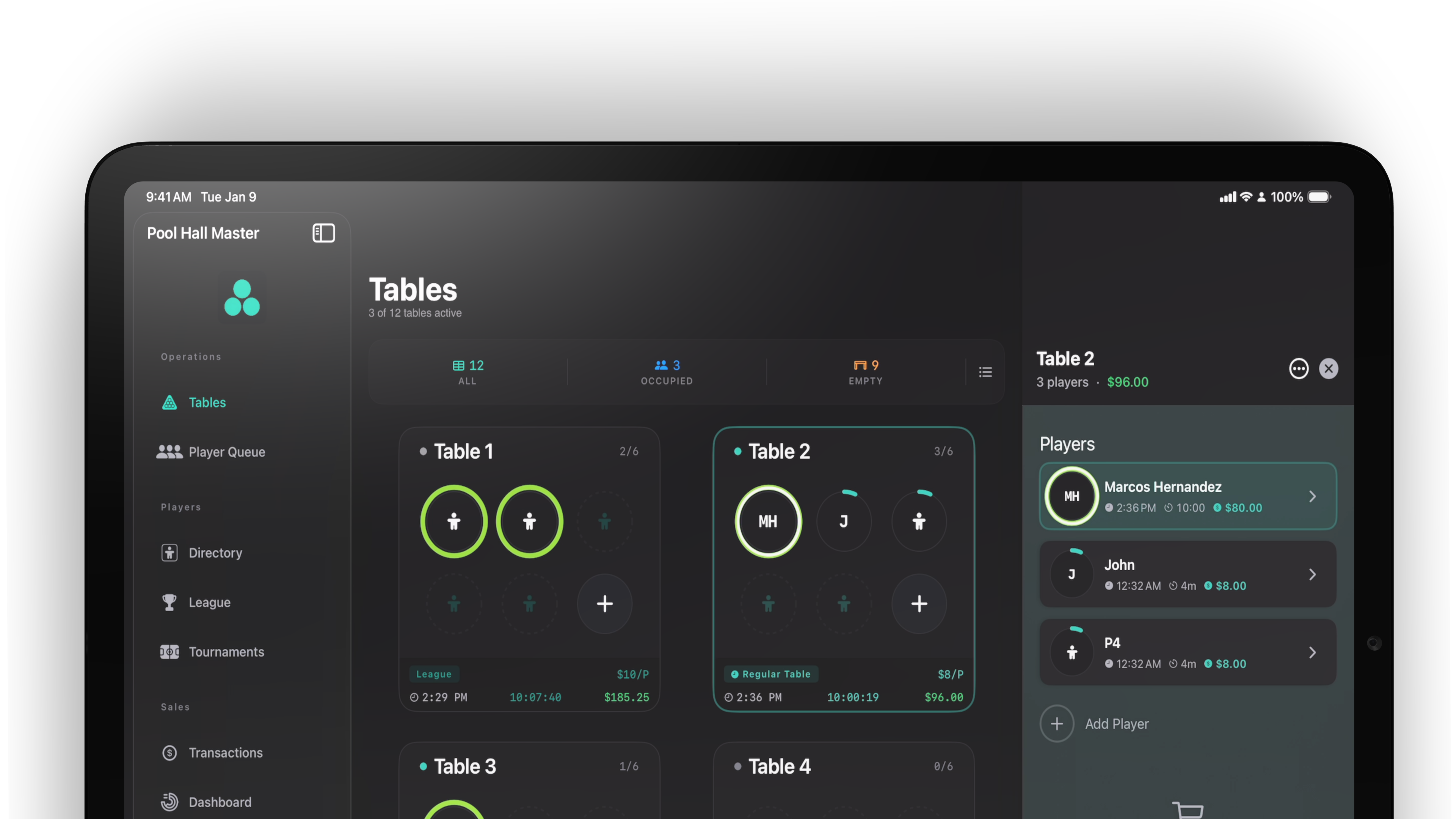
Adding a party
- Open Player Queue.
- Tap Check In in the toolbar.
- The Add to Waitlist sheet appears with four sections:
- Customer Information — name, party size, phone.
- Table Preferences — chips to select preferred table types.
- Special Requests — free-text notes.
- Permissions — toggles for SMS Notifications and Marketing Communications.
- Tap Add.
The party joins the Waitlist section with a status of waiting, and their wait timer starts counting up.
If the customer already exists in the Directory (matched by phone or full name), the existing record is reused. If not, a new customer is created automatically.
Where parties show up on the screen
The Player Queue is grouped into named sections so it’s clear what’s actionable right now:
- Waitlist — walk-ins waiting for a table.
- Today, Tomorrow, This Week, Later — booked reservations.
- No Shows — parties that didn’t return after being alerted.
A stat strip at the top shows totals: Waiting, Booked, No Shows.
Filters and sorting
The toolbar offers a filter menu and a sort menu.
Filter menu:
- Request Type: All Requests / Walk-Ins Only / Bookings Only.
- Wait Time: Any Wait Time / 15+ minutes / 30+ minutes.
- Party Size: Any Size / 1–2 people / 3–4 people / 5+ people.
- Clear All Filters at the bottom.
Sort menu:
- Wait Time, Arrival Time, Party Size, Name (A–Z).
There’s also a search bar with the prompt Search by name or phone….
Alerting the next party
When a table opens up that matches the next party’s preferences, send them an SMS that their table is ready.
- Tap the party at the top of the queue (or use the inline Alert button).
- Pool Hall Master sends an SMS using the You’re Next template.
- The party’s status changes to alerted and their row updates to show they were notified.
If they don’t respond, you can send a second alert with 2nd Alert — they’ll see the same template again.
The default text of the SMS is:
{venue}: Hey {name}, you’re next! Head to the host desk to check in!
You can customize it under Account & Settings → SMS Templates.
Seating a party
When the party walks up to the desk, seat them at a table.
- Tap the party in the queue.
- Tap the Assign to Table action (the table icon).
- The Select Table sheet opens, filtered to the party’s preferred table types when they specified preferences.
- Tap a table to seat them.
Pool Hall Master:
- Creates one player chip per seat (the lead’s name plus {Lead Name}‘s Guest 2, Guest 3, … for additional party members).
- Starts the timer immediately.
- Updates the party’s status to seated.
- Pulls them out of the active queue list.
Marking a no-show
If a party doesn’t show after being alerted, mark them as a no-show:
- Tap the party → No Show, or use the swipe action.
- They move to the No Shows section.
- The next party in line moves up in priority.
Restoring a no-show or removing entries
Sometimes a no-show actually arrives later — you can put them back in line.
- In the No Shows section, tap a party → Restore.
- Their status returns to waiting with the original join time preserved.
To permanently remove a party from the queue (e.g. they cancelled in person):
- Tap the party → Remove.
- Confirmation: Remove from Queue? This will permanently remove {name} from the queue.
To clear all no-shows at once, use the Clear All button on the No Shows section header.
Self-service waitlist
When the Waitlist feature is on, customers can join the waitlist
themselves from the public page at phmapp.io/{your-slug}/waitlist.
- They fill in name, party size, phone, and table preferences.
- They optionally consent to SMS notifications.
- The entry appears in the iPad Player Queue in real time.
- They receive a confirmation SMS using the Waitlist Join template.
- If they leave the waitlist on their own, the iPad shows a toast “{name} left the waitlist”.
Wait time displayed in the app
The wait time on each row is elapsed time since the party joined, not a predicted wait. It’s color-coded to draw your attention to anyone who’s been waiting too long:
- Green — under 15 minutes.
- Orange — 15 to 30 minutes.
- Red — over 30 minutes.
Use this as a service-level signal during busy nights — anything in red deserves a check-in from the host.