
Operator notes
What's new in Build 34
Block Play, website booking with card deposits, a smarter waitlist, the tournament command center, CRM segments, table logs, Square sync, TV displays and staff roles — everything that landed since the last public build.
- release-notes
- block-play
- bookings
- tournaments
Build 34 (version 1.0) is the build we’re opening to every pool room through TestFlight today. It’s the biggest jump since the first public beta, so here’s the tour. If you haven’t installed yet, start at Download — it takes about two minutes.
Block Play
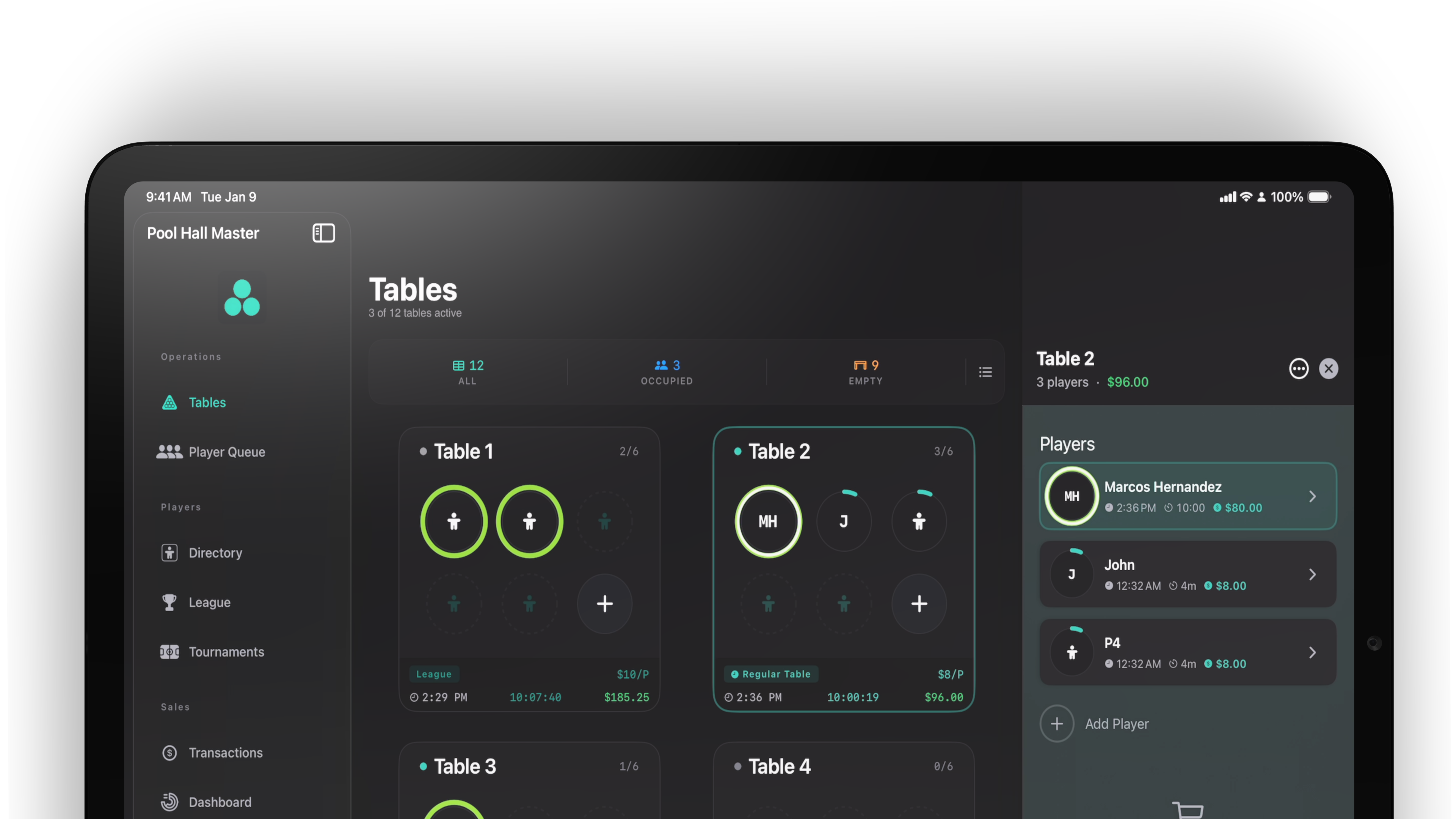
Rooms kept asking for a way to sell tables in fixed blocks instead of open-ended time: a two-hour Friday slot, a league block, a birthday party. Block Play does exactly that. Start a block on a table from the iPad (or from a booking) and three things happen:
- The table’s TV display shows a countdown with the block’s end time.
- The party gets an SMS as the block winds down, so nobody is surprised.
- The next party from the waitlist is lined up on the display as “Up next”.
Website booking slots and the waitlist’s new “how long do you want to play?” answer feed straight into blocks, so the floor always knows when a table frees up. Read the Block Play guide.
Website booking with card deposits
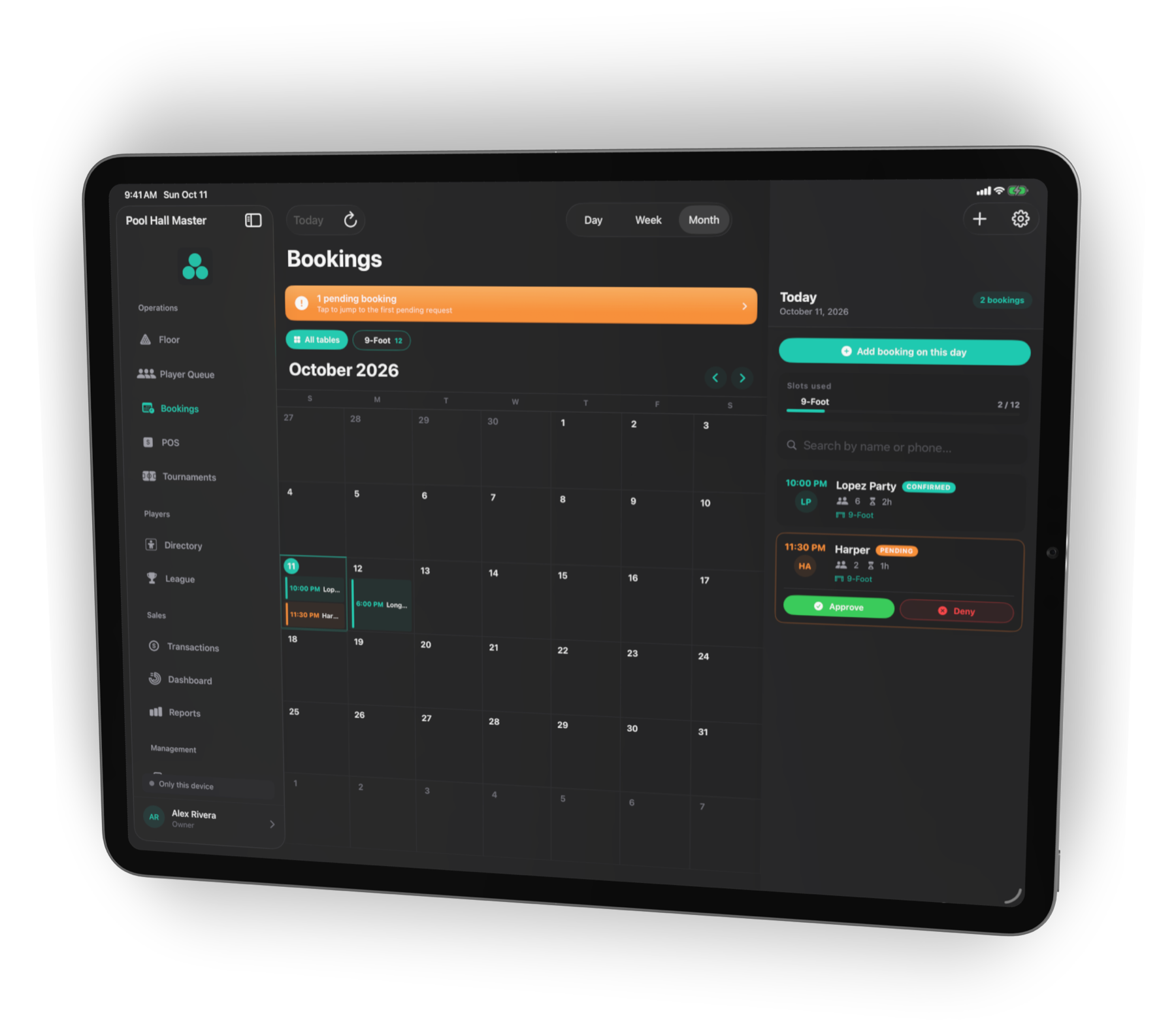
Your venue’s page on phmapp.io can now take table bookings. Guests pick a date, time, duration and table type; if you require a deposit, they enter a card and Square places a hold. The booking shows as Awaiting deposit until the hold clears, then Confirmed. Guests get a confirmation with a self-service cancel link, and the booking shows up in the iPad’s Bookings list and Player Queue on the day. No-shows can be captured; cancellations inside your policy window release the hold.
Setup is in Website booking and deposits.
Waitlist: “How long do you want to play?”
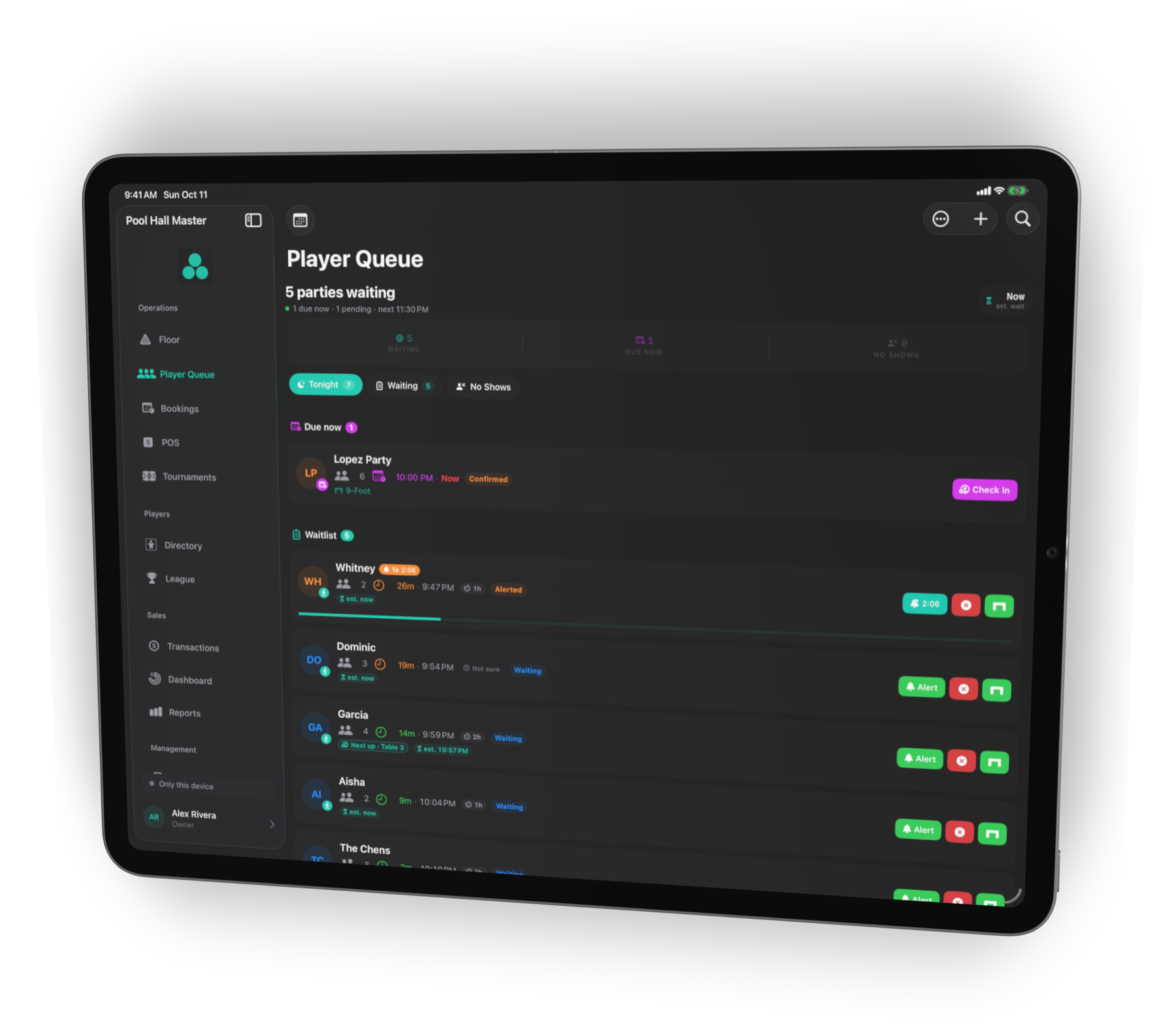
The web join form now asks an optional 1h / 2h / 3h / Open question. Staff see the answer in the Player Queue and the app uses it to pick the right block and estimate when tables free up. Everything else you know — join from a phone, live position link, SMS when the table is ready — is unchanged. See the waitlist guide.
Tournament command center and on-deck
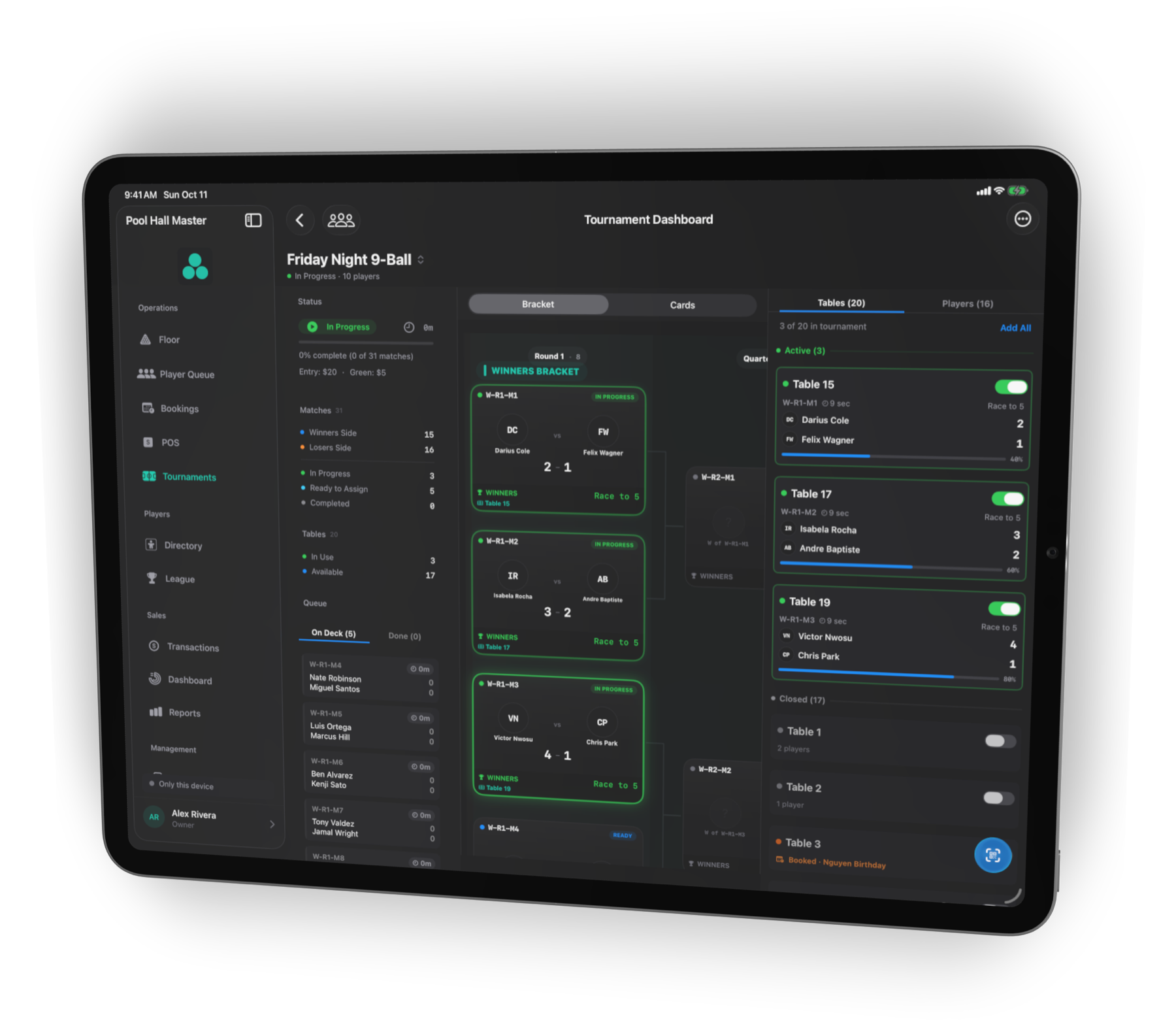
Running a tournament used to mean three screens. The new command center puts the bracket, live scores and an on-deck board together: who’s playing, who’s next, which table opened up. Players register online, score from their phones, and the TV bracket updates live. Details in the tournament command center guide.
Player directory segments (CRM)
The Directory now groups your players into segments you can act on: Regulars, Recent, Haven’t Seen, Tournament Players, League Players and Members. Filter, export, or text a segment in a couple of taps. Guide: Player directory and CRM segments.
Table logs
Every table keeps its own running log — cloth changes, rail work, incidents, maintenance reminders — alongside its session history, so “when did we last re-cloth table 7?” has an answer.
Square POS sync
Table time lands on the Square order as a line item; the bar adds drinks and settles one tab. Build 34 adds the Booking Deposit catalog link so deposits report cleanly in Square too. See Connecting Square POS.
TV table display and scoreboard
Each table has a display URL you can open on any screen with a browser. It shows the live scoreboard, the Block Play countdown, and the QR code players scan to keep score from their phone. A checked-out table now reads as available immediately. Guide: TV table display.
Staff roles and invites
Invite staff by email from Account & Settings → Staff Management and give them a role — Viewer, Staff, Management or Owner. Refunds, rate changes and other sensitive actions are gated by role, with optional staff PINs on a shared iPad.
Getting the build
Already on TestFlight? Open the TestFlight app and tap Update. New here? Follow the three steps on the download page. Every venue that installs before January 31, 2027 runs the full app at no charge until then — see pricing for Free Play, the founding terms, and the plans after.
Found something off? Email support@poolhallmaster.com with your venue name and the build number from Account & Settings.