
What it is
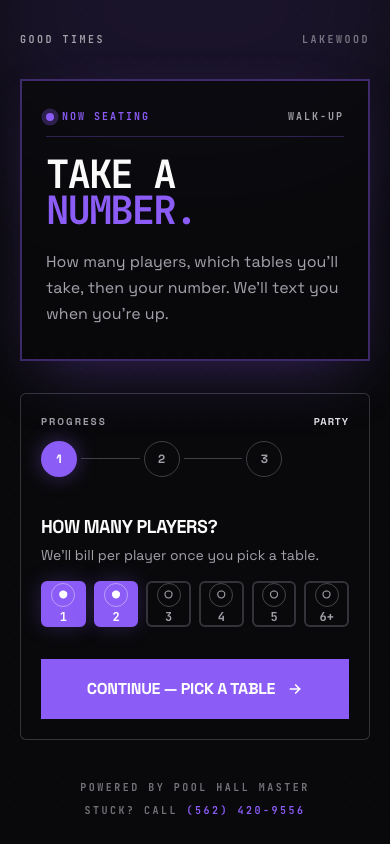
The Player Queue on the iPad is the staff side of the waitlist; this guide is about the guest side. Guests scan a QR code (or open your link on phmapp.io) and add themselves without stopping at the counter. The form asks for:
- Name, party size and mobile number
- How long do you want to play? — 1h / 2h / 3h / Open (optional)
- Table preference and any notes, if you have those enabled
They get a live page showing their position and an estimated wait, and a text when their table is wrapping up and again when it is ready. The how long answer travels with the party: when staff seat them, the Block Play prompt is pre-set to that length, and the app uses the answers to estimate when tables free up.
For the staff side (adding walk-ins, seating, no-shows) see Running the Player Queue.
Setting it up
- Open Account & Settings → Waitlist.
- Tap Generate Waitlist URL. This publishes your venue page on phmapp.io and gives you the Signup URL guests will use.
- Tap Re-sync to Portal whenever you change your theme, table types or tips — that pushes them to the public form.
- Under Alerts, set Time to Arrive (how long a notified party has to show up) and, if you like, Auto No-Show so late parties move to No Shows on their own.
- Add up to five Success Tips — short lines shown to guests after they join (“Grab a drink at the bar, we’ll text you”).
- Under Links, use Share QR Code & Link to copy the Signup URL or print the Scan to Join Waitlist code for the door, the bar and your table tents. Waitlist TV Display gives you a live board for a screen or tablet at the host stand.
Using it on the floor
What staff see
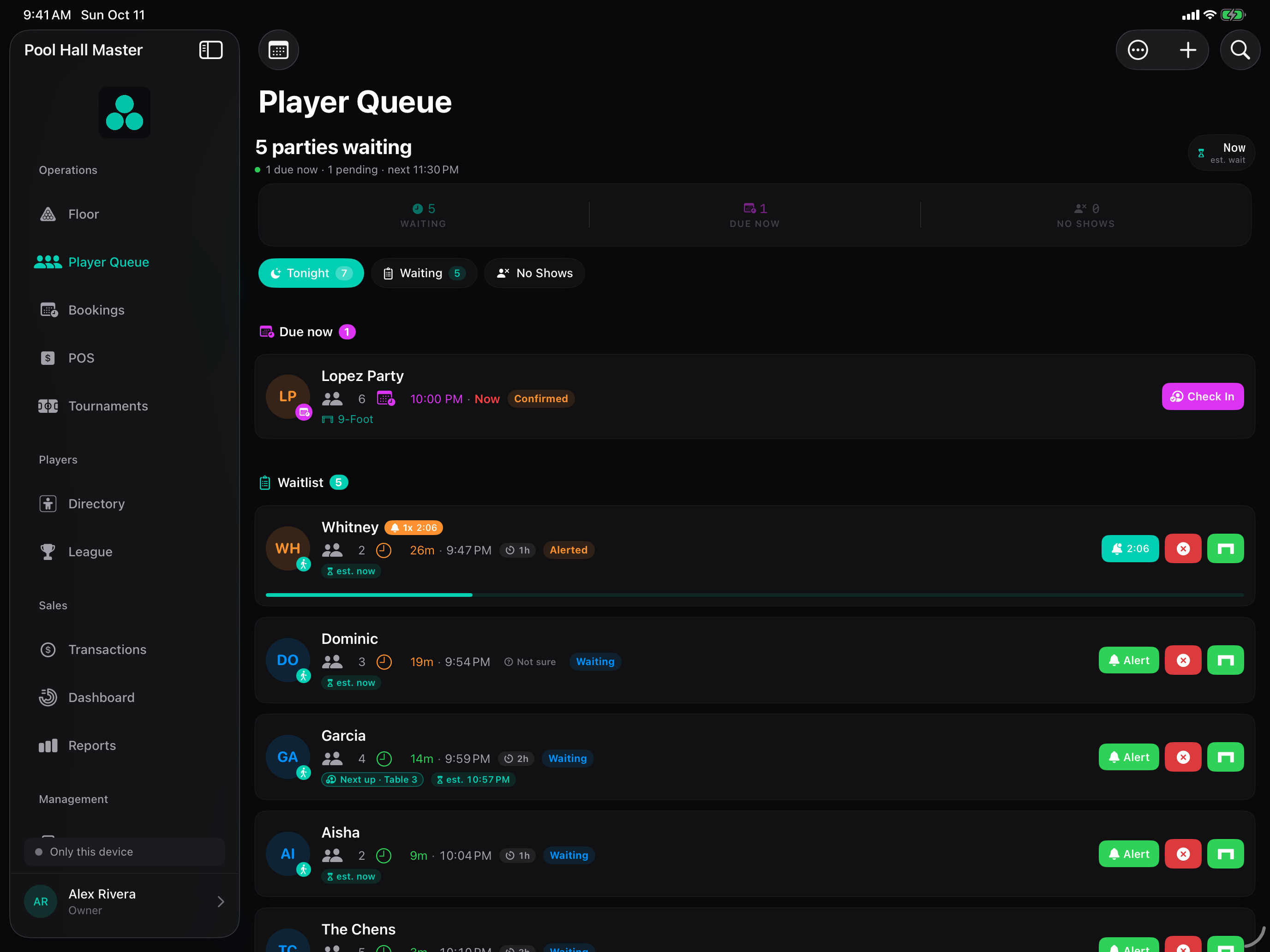
Web joins drop straight into the Player Queue with a small globe icon. The row shows the party, their requested length (Asked for 2h) and how long they have waited. Nothing else changes: you seat them, text them, or mark them a no-show exactly as you would a walk-in.
Seating
- Tap Seat at Table… (or drag the party onto a table).
- The Free Play | Block Play prompt opens with the guest’s requested length pre-selected. Confirm or change it.
- The guest’s phone page updates to Seated at Table 7 and the texts stop.
Texts guests receive
- Joined — confirmation with their position and the live link.
- Wrapping up — “Good Times: Table 7 is wrapping up — you’re next.” Sent when the table ahead of them enters its last minutes.
- Ready — when staff tap Notify or seat them.
No-shows
If a party doesn’t arrive within Time to Arrive after being alerted, move them to No Shows (or let Auto No-Show do it). Their place is released; they can rejoin from their phone.
FAQ
Can a guest change their party size or length after joining? They can leave and rejoin from their phone page; staff can edit the party on the iPad at any time.
What does “Open” mean for how long? The guest isn’t sure. The seat prompt then defaults to Free Play.
Does the estimated wait use Block Play? Yes. Running blocks have known end times, and the how long answers from parties ahead feed the estimate.
Can guests see other guests? No. Their page shows only their own position and the number of parties ahead.
Is the web waitlist available on the iPhone build? Staff see and seat web joins from the Queue tab on iPhone. Guests always use the web page.