
What it is
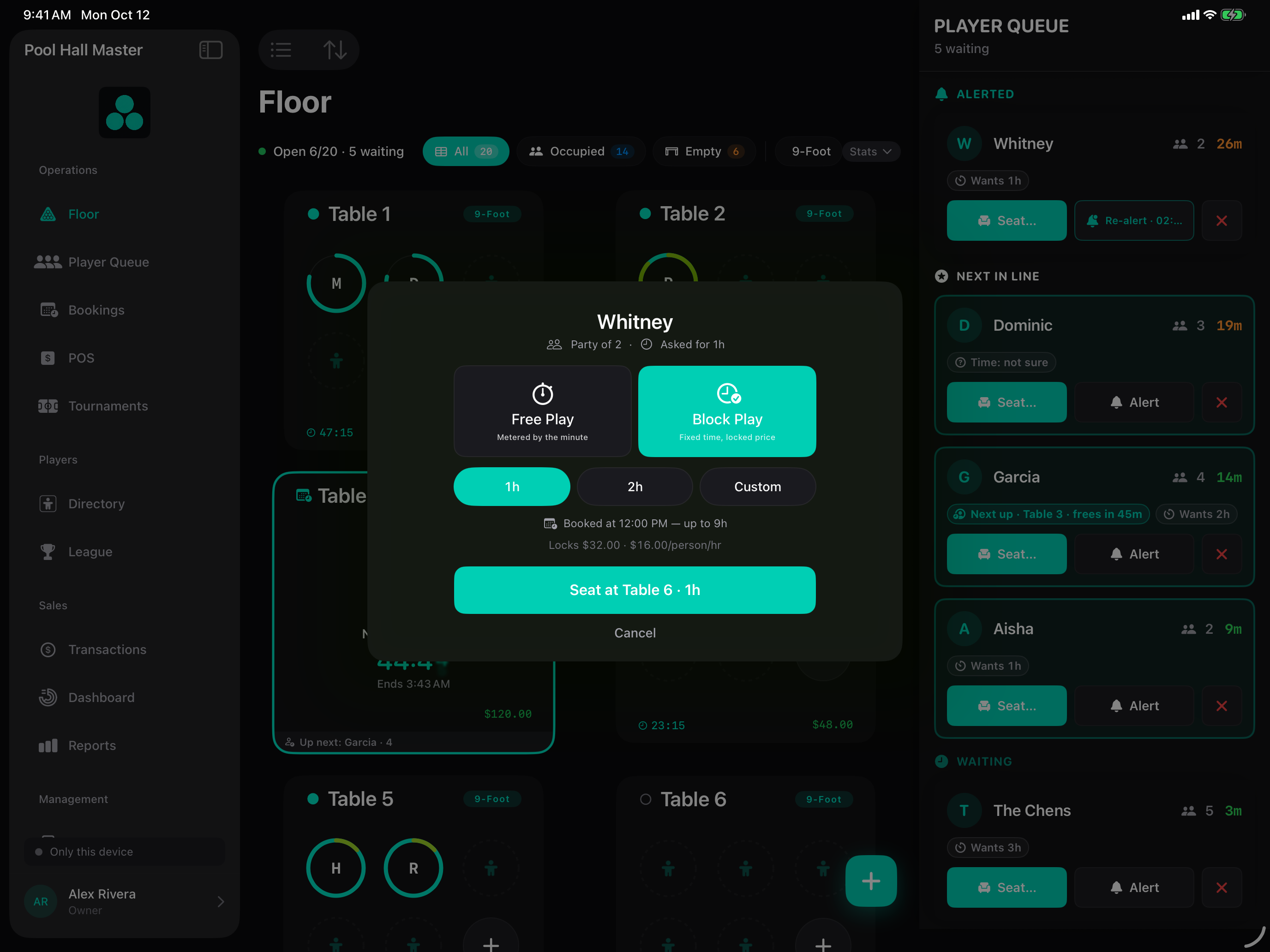
Most tables run as Free Play: the clock starts when the party sits down and they pay for whatever time they used. Block Play is the other mode — a fixed length (1h, 2h, 3h, or a custom length in 30-minute steps up to 6h) at a fixed price, with a countdown that starts the moment you seat the party.
Block Play is the right tool for:
- Busy nights when you want to promise the waitlist a realistic wait.
- Website bookings, which are always a block of time.
- Parties, league blocks and lessons that should end on time.
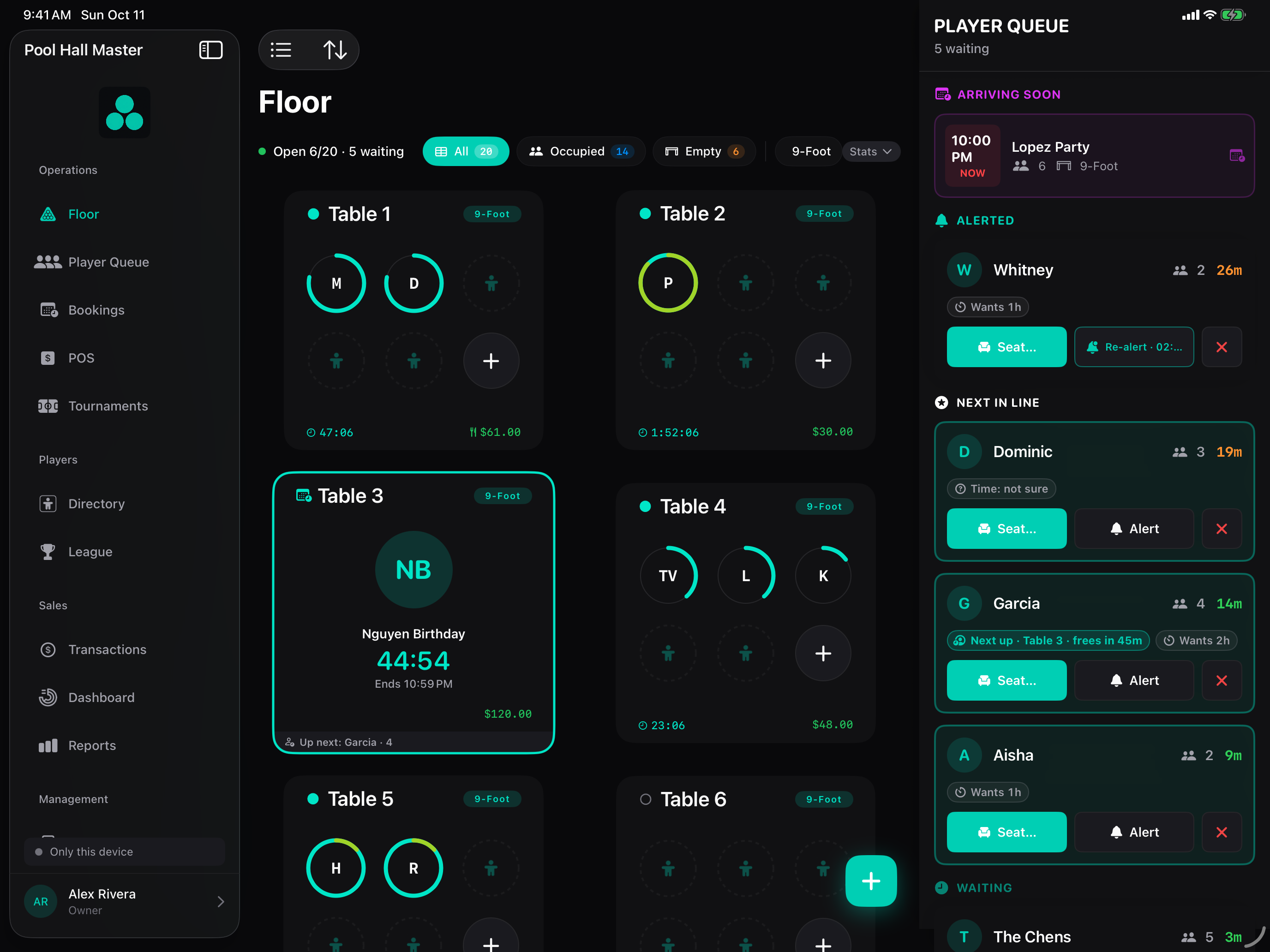
When a block is running, the table’s TV display shows the countdown and the end time, the party is texted as the block is wrapping up, and whoever is Up next on the waitlist is shown on the display so the hand-off is smooth.
Setting it up
Block Play needs no separate switch — it is offered any time you seat a party. Two settings shape how it behaves:
- Account & Settings → Tables & Pricing → Rate Rules. Block prices come from your rate rules, so make sure the table type has an hourly rate (and any evening / weekend rule) you are happy with. A 2-hour block is priced from those rules at seat time.
- Account & Settings → Waitlist. Make sure your waitlist URL is generated and Alerts are configured so parties get the “Table 7 is wrapping up — you’re next” text.
- If you take website bookings, the booking’s duration becomes the block length automatically — see Website booking and deposits.
Using it on the floor
Starting a block
- From Player Queue, tap Seat at Table… on the party (or drag them onto a table on the floor view).
- The Free Play | Block Play prompt appears. Tap Block Play.
- Pick a length — 1h · 2h are always there, plus the guest’s requested length if different, plus Custom (30 min to 6 h in 30-minute steps). If a booking is coming to that table, only lengths that fit before it are offered.
- Tap Seat. The countdown starts now (not at the next quarter hour) and the TV display switches to the block view.
While the block runs
- The table card shows the time left; the side panel shows the party, the price and the end time.
- As the block reaches its last minutes the table is wrapping up: the party is texted, and the next waitlisted party gets their you’re next text.
- The TV display shows the countdown and, underneath, Up next: Dana (party of 4, 2 hr) so the players know who is waiting.
Extending
Tap the table and use Extend Countdown (+30 / +60 min). You can also extend after the block has run over — the extension is priced at the same rate and the TV updates immediately. If the next party is already waiting on that table, the app warns you before you extend.
Ending
When the block is over, check the party out as normal. The table reads as available on the TV straight away, and the next party is one tap from seated.
FAQ
Can a party switch from Block Play to Free Play? Not mid-block. Let the block end and start a new Free Play session on the same table; their tab carries over.
Does the block round to the quarter hour? No. A block starts at the moment you seat the party and ends exactly its length later. Bookings, by contrast, start at their scheduled time.
What happens if they leave early? They paid for the block. Check them out and the table is free; nothing is refunded automatically (an owner or manager can refund from the tab).
How does this interact with Square? The block is one line item on the Square order at its fixed price. See Connecting Square POS.
Does Block Play work on the iPhone build? Yes — the same prompt appears when you seat from the Queue tab.