
What it is
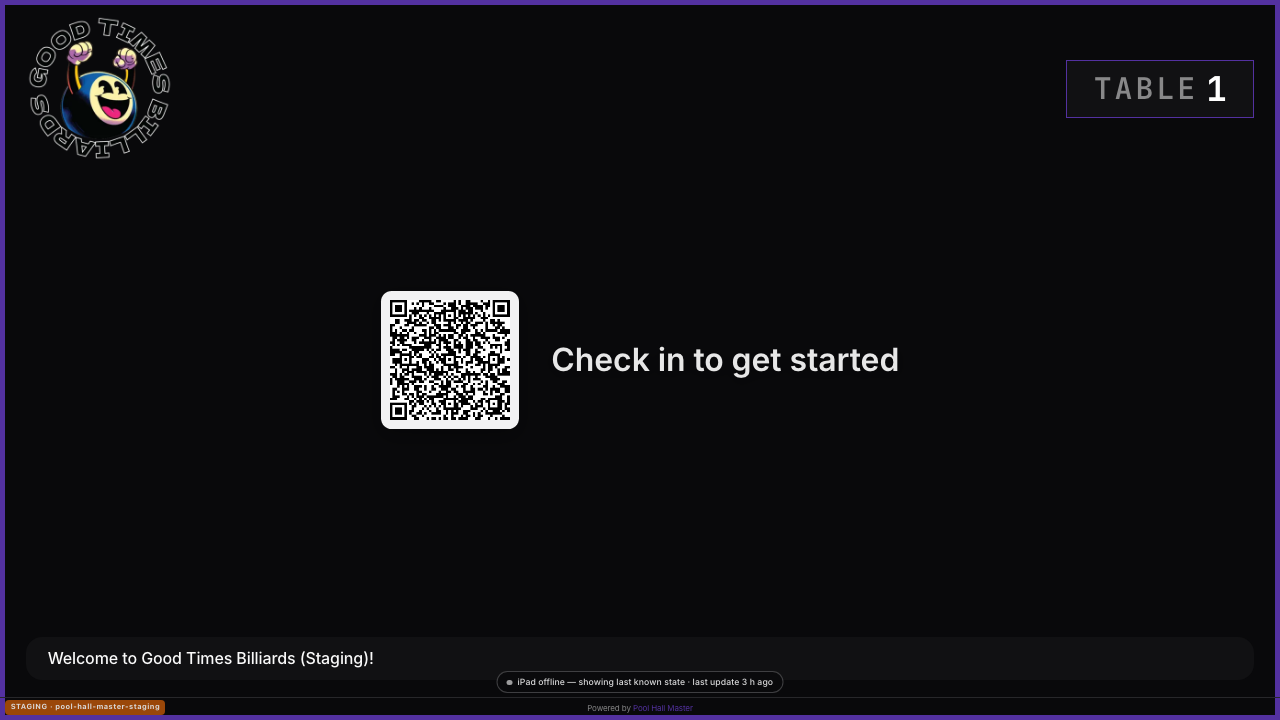
Each table can have its own display URL — a web page you open on any TV, stick or tablet with a browser. It is driven live by the iPad and shows, depending on what the table is doing:
- Available — your venue branding and a scan to join the waitlist QR code.
- In session — the players at the table, the scoreboard, and a QR code that lets players score from their own phone.
- Block Play — the countdown and end time (Block Play · 2 hr · until 9:30 PM), plus Up next: Dana (party of 4, 2 hr) when a party is queued for that table.
- Tournament — the table’s match and race, scored from the command center or players’ phones.
A checked-out table drops back to Available immediately.
For the original step-by-step on enabling the feature, see Setting up TV displays. This guide covers day-to-day use and what changed in Build 34.
Setting it up
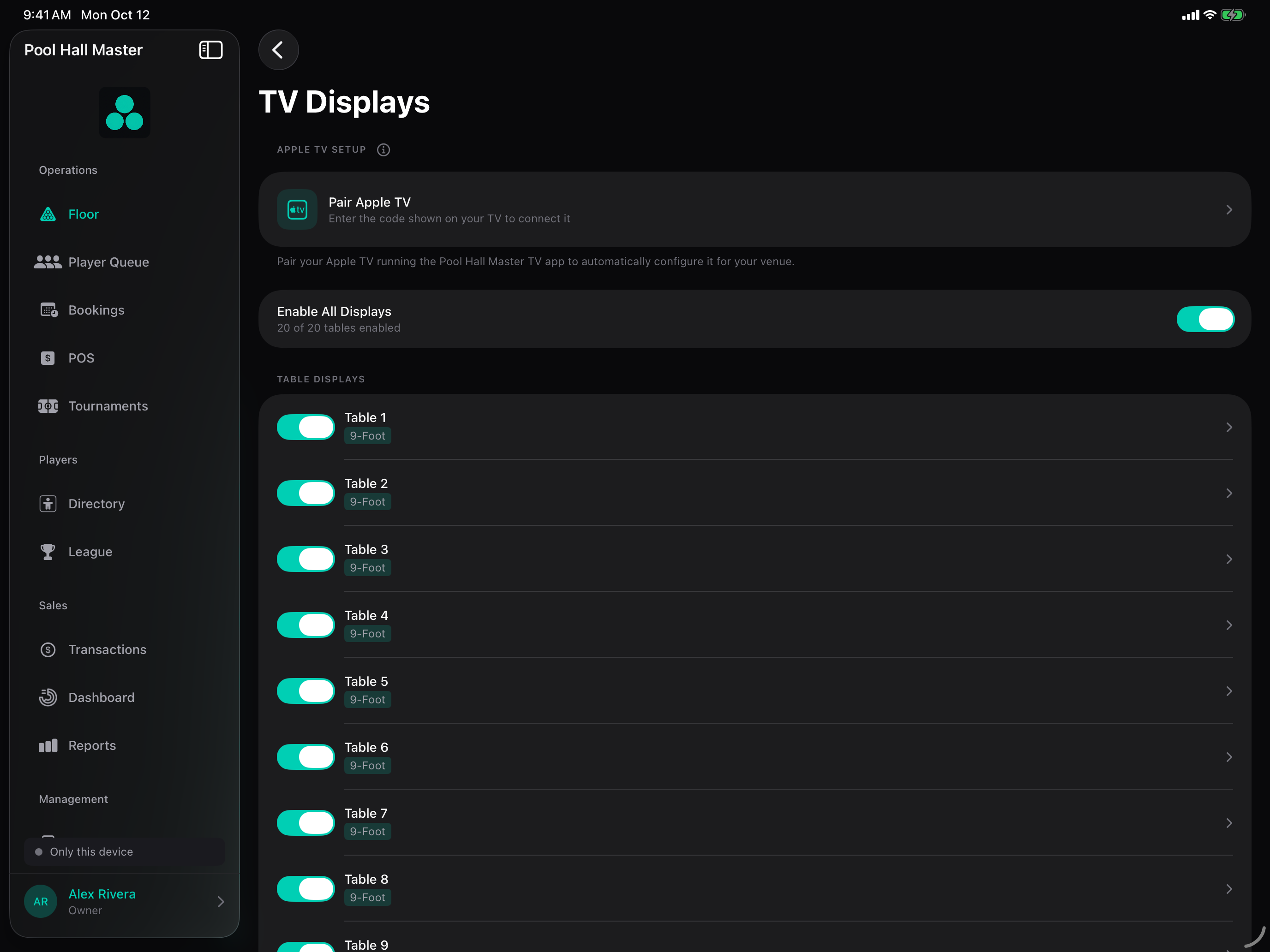
- Open Account & Settings → TV Displays. If you see No tables, add tables in Tables & Pricing first.
- Tap Enable All Displays, or enable tables one at a time.
- Tap a table to get its Display URL and Scan to Open Display QR code. Preview in Browser opens it on the iPad so you can check it before you walk to the TV.
- On the TV: open the URL in the browser (Fire TV / Android TV browser, a Chromecast with Google TV, a mini PC, or any tablet). Set the browser to full screen and the screen to never sleep.
- Apple TV: tap Pair Apple TV, open the Pool Hall Master TV app on the Apple TV, and enter the 6-digit code it shows.
- Repeat for each table. If a URL leaks or a TV is moved to another table, tap Regenerate — the old link stops working.
Using it on the floor
Scoring from a phone
- Players scan the QR on the TV. Their phone opens the table’s scoreboard controller.
- The TV shows a short code to confirm they are at that table; they enter it once.
- From then on, taps on the phone update the TV instantly: score, rack count, who’s breaking. Games are logged against the players on the table.
Block Play and Up next
Nothing to do — when staff seat a party in Block Play, the display switches to the countdown. As the block wraps up, the next party from the waitlist appears under it so the table knows who’s waiting. See Block Play.
Tournament mode
When a match is called to the table from the command center, the display shows the match and the race. Phone scoring works the same way and submits to the approval queue.
Waitlist display
Separate from per-table displays, Account & Settings → Waitlist → Waitlist TV Display gives you a single board for the host stand that lists who is waiting and who’s next.
FAQ
What hardware do you recommend? Anything with a modern browser. Rooms are running Fire TV Sticks (Silk browser), Chromecast with Google TV, old iPads, and the Apple TV app. Avoid “smart TV” built-in browsers from before ~2020.
The TV says Available while someone is playing. Make sure the party was actually seated on that table in the app (not just on the waitlist) and that the TV’s URL is for that table — tap Preview in Browser on the iPad to compare.
Can the display show ads or my drink menu when idle? Not yet. The idle screen shows your branding and the waitlist QR.
Does it need Wi-Fi on the TV? Yes — it’s a live web page. A wired or stable 5 GHz connection avoids the odd freeze.
Is the scoreboard tied to Square? No. The scoreboard is about games; table time and the tab are handled by the session and, if connected, Square.